When you're writing something on your Mac, you might suddenly find yourself in a situation where you need to send some emoticons. Emoji help us to make our point more clearly when words are just nestand can be used in third-party applications in OS X as well as through supported websites such as Facebook or Twitter.
Although the Messages app has built-in practical and easy-to-use Emoji, other apps in OS X aren't as well-suited to using emoticons. In this tutorial, we'll show you how to display the Emoji selection window from anywhere supported in OS X.
Emojis are a great way to express yourself in text messages, but they are also used in emails, notes and other occasions. In applications where the emoticon selection button is not displayed, there is a simple shortcut to call up the emoticon menu and insert any emoticon that suits you.
Control + Command ⌘ + Space
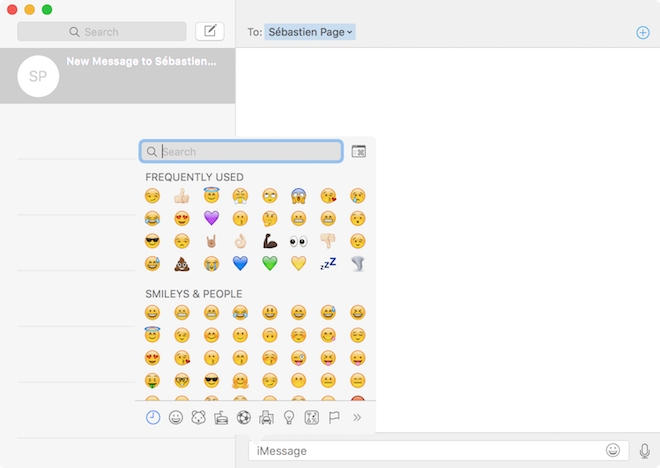
This keyboard shortcut will bring up the smiley menu you can see in the image below in any text field. After opening, you can browse Emoji by category, see frequently used, your favorite emoji, and you can also search for emoticons at the top of the window.
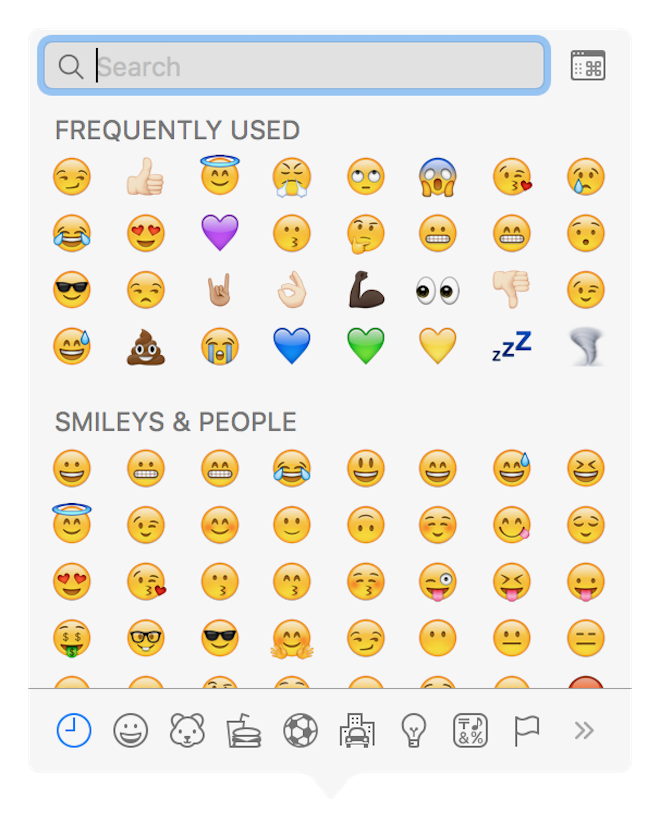
Along the bottom of the selection window are small shortcut icons that allow you to quickly find the emoji you're after.
Happy smiling!
*Source: iDownloadBlog