
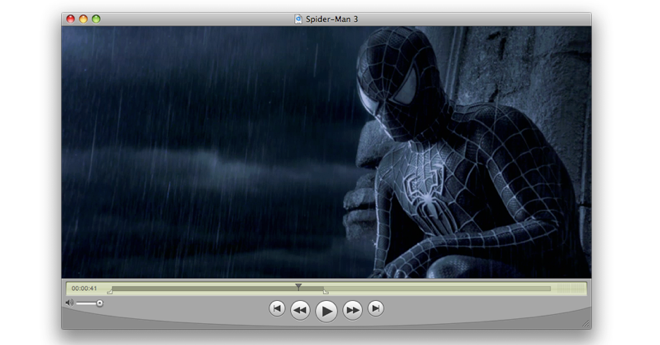
Apple QuickTime X included in Mac OS X 10.6 Snow Leopard has been optimized to play the most modern video formats such as H.264 or AAC. But that's not all, if you want to quickly record your own desktop, for example, as in our article, you don't have to immediately reach for third-party developer tools, it can do that too QuickTime. Of course, it also works with your iSight camera, or any other camera connected to your Mac. Let's see how it can be used QuickTime X!
Video recording via iSight
Open up QuickTime X and select File and then select New Movie Recording. Now the recording window itself will open. First, we will set everything up and then we will start recording the video itself. The basic settings are made with the small arrow pointing down to the right of the red video recording button. First of all, you can choose which camera your Mac will use to record video. For example, I will choose that I want to use the integrated iSight camera in my Apple LED Cinema display and select the quality, either Medium = 320×240 Pixels, High = 640×480 or Maximum = 1280×1024. These values obviously apply to the built-in camera, if an external one is used, they will differ depending on the selected camera.
 You can then select the microphone that will record audio regardless of the camera. For example, you can record with the display but use the microphone from MacBooku. Now you just need to choose the folder where you want to save the resulting video in .mov format, by default the folder is set to Movies. Of course, you can set the device for which you want to save the video, the choice is from classic video to video for iPhone or iPod, up to HD video. If we are satisfied with everything, just select the volume using the speaker icon, to the left of the red record button. Now just press the red button in the middle of the control panel and you can start shooting your first film attempts. Once you finish recording with the stop button, you can share the video on YouTube, MobileMe, for example, or add it to your iTunes library. You do everything using the square button with an arrow, to the right of the controls. ProHowever, the problem occurs especially when uploading to YouTube. On MobileMe, the video is uploaded "just fine", but when uploading to the YouTube server, it often happens that the video remains stuck after a few seconds for several hours, or even tens of hours, and the upload does not take place. Moreover, the program does not even evaluate any error message, so you are forced to manually terminate the process. Quicktime X. You can also trim or cut the video. In the same menu where you can find the sharing options, select the Trim item. Simply select the start and end of the video on the displayed timeline.onec videos.
https://youtube.com/watch?v=uN_1uEuQvVY
Desktop recording
The video in this article is uploaded thanks to a new feature QuickTime X, which allows you to record your desktop during any activity in Mac OS X 10.6 Snow Leopard. Everything is similar to recording via a camera, except that the area in front of the camera is not captured, but the Mac desktop itself. Just in QuickTime X select File – New Screen Recording. Just like when recording with a camera, you can choose the video quality, microphone for recording audio with the video, and the folder in which the video will be saved. The video is saved by default in a resolution equal to the resolution of your display. The video can again be trimmed and shared just like any other.

Summary
QuickTime X doesn't offer any advanced features for recording your desktop or video, except for editing. However, it's more than enough for creating short films using the iSight camera, as well as for creating video tutorials using the recording function of the system itself. As is already the case with Apple custom, everything is done so that you are completely QuickTime They mastered X within a few minutes of use. Apple limits its users to some extent, but precisely due to the limitation of supported formats in QuickTime X has no sharing issues. So if you shoot any video through this program, you can be sure that you can easily show it to your friends via YouTube, MobileMe, put it on iTunes and iPod, or iPhoneYou don't need to use any other programs to convert formats, but you can just use iTunes and QuickTime X.






Yeah, yeah, quicktime doesn't seem to :-) Only when I found out what that arrow is for ;-)
QT is fine, but in the trim function you can't cut it exactly if you have a long film. So I made Service v for it AppleScript, so if anyone has a similar problem, I'd like to share :)