
The following procedure is suitable for anyone who feels that their battery has stopped reaching the same endurance as before. Also for anyone who feels that their Mac OS X and computer are no longer as powerful as before, or have problems with the display/keyboard backlight, speed, and so on. For example, when switching from Mac OS X 10.5 Leopard to Mac OS X 10.6 Snow Leopard, putting my Mac to sleep and waking it up took long seconds, fortunately, PRAM and SMC reset helpedstore.
The following procedure is completely safe, you won't lose any data or system settings thanks to it, the only thing that can happen is changing the date to the default setting, but changing it to the current time takes a few seconds, nothing more is at risk.
PRAM and NVRAM Reset
Before you start resetting something, you might be interested in what it actually is and what such PRAM and NVRAM memory is responsible for. PRAM memory takes care of the following settings and communication of the operating system with the hardware in the following matters.
- Status AppleTalk
- Serial Port Port Configuration and Definition
- Alarm clock setting
- Font usage
- Printer location (USB/Wifi….)
- Autokey rate
- Autokey delay
- Speaker volume
- Alert (beep) sound
- Double-click the time
- Cursor Blink Rate
- Mouse speed
- Startup disk
- Menu blink Count
- In-depth monitoring
- 32-bit addressing
- Virtual memory
- RAM disk
- Disk cache
By resetting this memory, you can correct errors that may appear in one of the parts listed above, of course these characteristics also affect the condition and performance of the battery. To reset PRAM and VRAM, follow the procedure below.

- Turn off the computer
- Find the keys on your keyboard Command + Alt + P + R
- Turn on the computer and press keys Command + Alt + P + R
- Hold down the keys immediately after pressing the Power button until you hear the Mac startup sound a second time. (Mac will restart)
- Allow the system to boot and then restart Mac OS X in the normal way
- All is done!
No data or settings will be lost when resetting PRAM and VRAM! Restarting can help resolve issues your computer may be having as well as improve battery health and performance.
SMC reset
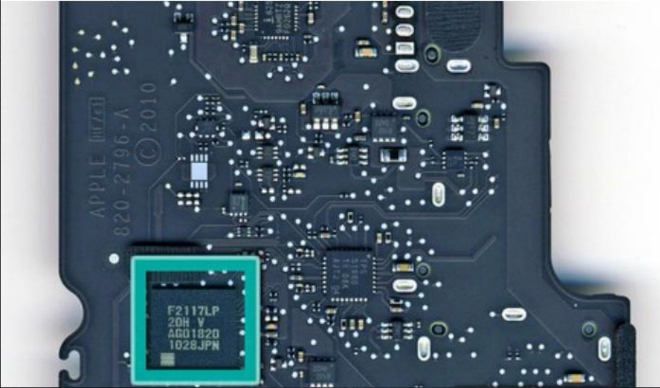
The SMC, or System Management Controller, is one of the most important components of your computer, affecting all of its sensors and, among other things, the health and life of your battery. Before resetting the SMC, my battery was in MacBook Pro 15″ Unibody endurance at 100% charging time 2 hours and 5 minutes, after resetting the SMC the battery has 100% charging time 4 hours 10 minutes. SMC management is therefore responsible for:
- Reaction to the Power button
- Response to opening and closing the display on portable Macs
- Battery management
- Thermal management
- SMS (Sudden Motion Sensor) function
- Ambient light sensing sensor
- Keyboard backlight
- Light status indicator (SIL) management
- Battery status indicator - battery light
- Selecting an external (instead of internal) video source for some iMac displays

Resetting the SMC varies depending on the type of your machine, if you have a computer without or with a non-removable battery, follow these steps:
- Turn off the computer.
- Plug it in and let it charge.
- On the keyboard, press the keys on the left side Shift + Ctrl + Alt and the Power key at the same time, i.e. all 4 at the same time.
- Hold the keys for 2-3 seconds and release them all at once.
- Turn on the computer normally
- All is done
If you have a computer with replacement batteries, choose the following procedure:
- Turn off the computer
- Unplug it from the outlet
- Remove the battery
- Press the Power button for 5 seconds
- Insert the battery
- Turn on the computer
- All is done
No data or settings will be lost when resetting the SMC! Restarting can help resolve issues your computer may be having as well as improve battery health and performance.
The condition and performance of the battery will of course also affect battery formatting, you can read more about how to do it in our next article.






Great tutorial, it helped me quite a bit! I even scored 250 more points in the geekbench benchmark!
It probably doesn't make sense to do it with a 2 month old Mac Book Pro that?:)Maybe I'll use this guide in the future. Thanks
Petr F: That's right, he himself apple SMC recommendsstore do it once a month if you use MBP on the network. I have an MBP 15″ Unibody that is half a year old and it helped me a lot, especially with the battery.
The PRAM reset doesn't work for me, I tried it several times but I never heard the second sound and I pressed it immediately after pressing the on/off button :( Have you had similar experiences?
I don't know why but I just can't reset the PRAM (SL 10.6.2, Macbook 13″ Aluminumminium Late 2008 2.4 GHz 4GB RAM). After pressing Power and immediately pressing CMD+ALT+P+R before the gray screen, I Macbook It boots normally to the splash screen and the "startup sound" only plays once.
It seems to me that the SMC reset did not go through. After a year, the battery lasts 2:05 when fully charged, and after a reset it lasts the same.
Any advice?
Thanks
Thanks for the tip, it really sped up the car. macbook:)
mazi: can you please tell me what the battery capacity is now in percent? I have it too macbook 13″ aluminumminium late 2008 and my battery dropped to about 85% capacity and I don't know if that's normal or if I have a bad battery. But yesterday after the restarts described here in the article it jumped to 90%, but I still think it's a little over a year old macbook.
Thanks
santa: I don't know what exactly you mean, but I guess it's this:
Cycles: 207
Health: 95%
– PRAM problem solved: disable firmware password
– SMC then nakoneIt worked and the flashlight shows 3:10, not a miracle from the 5 hours I was given, but at least an improvement :)
My battery went crazy after PRAM and SMC :-D
I did both restarts according to the given instructions, and now my battery can't decide how long it will last :( I always click on nu and it shows me a different time... :( So far 100% she averaged up to 3 hours remaining...
(Macbook 13″ Alu, 2,4 GHz, May 2009)
Current values:
15:09 a.m. – 2:05 p.m. – 100%
15:09 a.m. – 4:06 p.m. – 100%
15:10 a.m. – 3:44 p.m. – 100%
15:10 a.m. – 3:50 p.m. – 100%
15:11 – 4:29h – 99%
15:11 – 4:04h – 99%
15:11 – 3:48h – 99%
15:12 – 4:10h – 98%
15:12 – 4:13h – 98%
15:24 – 4:12h – 91%
15:27 – 4:58h – 90% – this figure amused me :)
15:28 – 4:38h – 89%
No Wifi, No BT, no NET, only Mail, iCal and Dashboard - iStat runningPro. Brightness 50%, keyboard backlight OFF. Health 90%, Cycles 257.
Result: So far I could follow the given time, but obviously I can't rely on it anymore :) Is it normal for it to jump in such extremes without any change of conditions (starting other programs, etc.)?
Elten Cross: Well, try the reset one more time, you got to 4 hours now :-) But I realize that it will never be completely reliable and it depends on what you have running, etc.
I don't see how something like that can benefit battery life. I understand that the indicator can behave differently (showing higher values if it loses history), but the effect on real battery life?
Hey guys, do you really think that clearing some "cache" will make your battery last longer? It's not just that there are statistics in the cache, how long MacBook lasted on batteries and by deleting this you will only make it think that the battery is at 100% and therefore shows that it will last longer without having a real impact on the actual battery life?
Miroslav Buček: No cache can be deleted, but memory which is responsible for the cooperation of firmware + OS together with hardware. In addition, she recommends this herself Apple, there are already a few voices for whom it worked and I personally know of more than 20 people who it really helped.
The question is what does it mean that it helped. Is it just the indicator showing them more hours of endurance, or are they really testing the endurance with a stopwatch in their hand? If that were really the case, then it is MacBook really crap that gets "shitty" over time and needs to be "reset" every now and then.
Miroslav: I would say yes Apple cannot bypass the principles of chemistry and physics. Nothing goes wrong, but the microprocessor in the battery is not able, after several tens of cycles, to reliably determine how the battery is doing without this reset and transfer it to the OS:
Thanks for the tip gentlemen. I have a 3 day old macbook white and today I noticed that after 100% The battery charge shows 3 hours of battery life, which seems like a hell of a lot to me. So I tried the procedure above and the battery indicator jumped from 3 to 5 hours. But after a while it dropped to 4,5 hours and it seems to me that it is somehow dropping too quickly (in about 5 minutes it dropped to 4 hours). Moreover, it seems to me that MacBook It gets quite hot. It's just a shame that I didn't notice whether it behaved like this on the first day or only after downloading some updates:-(
Roman Zavřel: But that's pretty stupid :-) Tell me that the processor can't reset itself once a month :-D
http://support.apple.com/kb/HT1379
So I did the whole process and I don't notice any difference.
@Roman Zavřel Where in that article does it say anything about battery life?
@Miroslav Buček Miroslav, you are not right! By resetting, my battery rose to an incredible 15 hours of endurance! … while connected to the network ;)
Jiří Borek: The procedure mentioned in the article is recommended Apple Inc. use it for battery life problems, as you can see in the comments it helped people, it helped other people and they wrote to me on FB or email. Thank you for your comment although very misguided! Have a nice day
Jiří Borek: Jiro, my MBP can also last incredible hours plugged in! :-)
I don't know, I did everything as described, during the PRAM reset it really started twice and during the SMC reset I noticed that the sleep control was flashing as if it had passed... however, it didn't affect the "health" of the battery, the one that iStat pro showed was 2 cycles 100% and then it dropped back to 94%, where it has been for several weeks now and even formatting the battery doesn't help... =o((
@Roman> Yes, exactly! Apple Inc. it is recommended to use it for PROBLEMS but not to reset the PRAM, let alone the SMC every month!! this is complete nonsense.
@ostatni> Predevsim SMC, which takes care of, for example, fan speed, etc. If you do this often and you don't know why you do it, just because you read on the Internet that it's simply good and your Mac will speed it up, then you are wrong. Your fans will start spinning faster or slower (you can then see the impact yourself) and the computer may not work properly after frequent resets.
I don't want to offend anyone, but it would be good to write at least under the article that it is not recommended to perform a reset often, only and ONLY in cases where you really have a problem and this specific problem concerns the area that Apple publishes on its pages.
Dear Mr. Lojda, please read apple.com, where it is recommended to perform this solution on networked computers once a month. Thank you for your opinion, unfortunately it contradicts the opinion Apple Inc.
@roman> may I ask where exactly you read it? I can't seem to find it, thank you.
Mr Lojda,
I'm not interested anymore, I'm doing it for fun, without ads, etc. I'm not interested in constantly dealing with your stupid comments. Please start your project and then test yourself on people like you.
@roman> sir Roman, I just wanted you to send me a link where I can find this information, that's all. I didn't want to be a jerk, etc.
If you are not able to send me a link where this information is written, then I cannot believe you.
If you send the link and everything is as you say, of course I apologize.
Dekuji
PS: you can't do it without ads, so don't argue.
Mr. Lojda! Mr Roman Zavřel is at least a trustworthy lojda person unlike you. I'm not even interested in your poor comments and opinions. If something doesn't seem right to you, prove the opposite, but otherwise hold on... (I don't know why someone should fake it for you. Then you would still want to translate it, wouldn't you? :-D ). If you don't think this website is good enough, don't go to it. I think I can survive here even without you.
RoSchFouRe
PS: this is only my opinion and I do not speak for others. Otherwise, thank you very much for the advice to the author.
It shouldn't be on by chance when resetting the SMC macbookIs the adapter connected? The instructions say it should be disconnected, but that doesn't work. nestYes, when I connect it, the cursor flashes and a long monofrequency sound appears. After this reset, my system startup and loading became incredibly faster (about 15 seconds). The battery is rather worse :-)
I'll try the first reset again.
This is clearly not a random acceleration. I changed the graphics nvidia chip to mem macbookfor pro and after the replacement everything was incredibly slow, after these restarts my mac became incredibly fast, xbench tes now shows me 4x higher values. That's really not a coincidence :-)
I've tried restarting the newer Unibody Mac 13" and apparently I can't perform an SMC reset.
If the battery is out, I hold down the power button and nothing happens. nestYes, if the Mac is plugged in and without a battery, the system will boot normally after holding it down. The Mac started turning itself off and on while I was working (the screen just goes off and then turns back on), so I thought that might help.
In addition to the original acceleration after replacing the graphics chip. You're probably right, I didn't perform an SMC reset, but an EFI reset (at least according to what I've read, that is, the light started flashing and then there was a sound). So the EFI reset probably fixed the speed. Otherwise, I don't understand how to do the SMC reset, or what is the feedback confirming that the SMC reset is done. When I looked on YouTube, they did the reset a little differently. So I'll try to figure it out :-)
hm great, I've been feeling new since the beginning macbook pro It didn't seem like he could hold out for more than 6 hours, he showed me the time...after this process he wrote to me 100% health but it hasn't shown at all in over 5 hours
From my own experience, it is useful to reset PRAM and SMC after a firmware update, as this can prevent some strange system behavior.
How come when I try SMC I hold shift+ctrl+alt+power it does nothing… just nothing happens…?
How is it with resetting the SMC on the iMac please? I'm crazy about the graphics and processor fans. It spins from 1500 to 3500 rpm for no reason. I would like to try this possibility for service. Mac has been at home for a month and while I got used to it after switching from Win...and now this :(
Roman Thank you, I got it :)
Hello:
the keyboard backlight stopped working... it doesn't respond to the sensor even when turned on manually.
I tried restarting smc but no change...have you ever solved this problem?
I did both resets, I've never done them before, and I have to say that I got my mac back about a year and a half ago.
Total chaos. Also, I have TimeM.
Careful with this one.
I did a reset and the battery jumped from 3,5 hours to more than 6 hours
Has anyone tried these resets on an iMac as well?
Sup, it helped!
originally 4:15 a.m., now 11:20 a.m
Thanks!!
SMC reset for desktop Macs (intel iMac, Mini, Pro, Xserve) according to Apple.com:
Turn off.
Unplug from the outlet.
wait 15 seconds
connect
wait 5 seconds
Turn on